Extra Pair of Eyes
Language · English

Turn a spare device into a private camera.

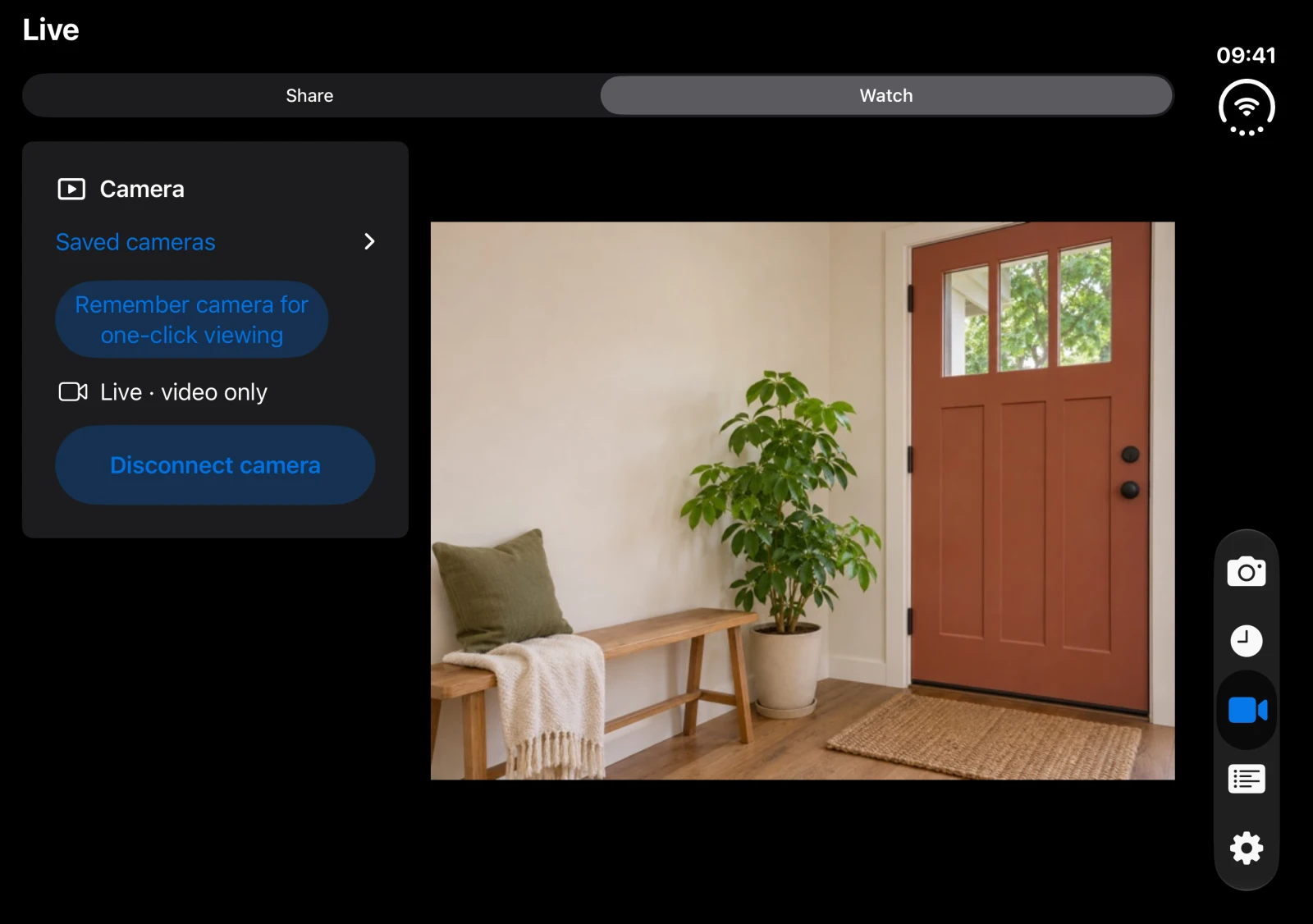
The connected Live View showing an entryway
Live View on MacLive View on iPhone

Give a Mac, iPhone, or iPad a second life. Capture motion on the camera device, or check in live from a paired screen.

Mac · iPhone · iPad

On-device detectionLocal recordingsNo app account

At home or away.

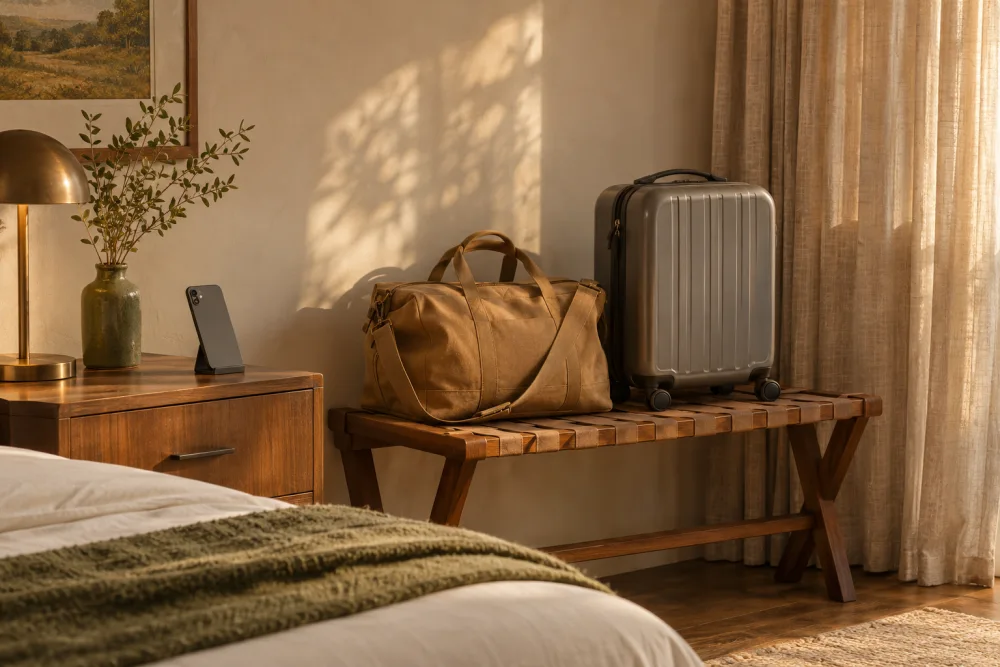
A phone on a stand near luggage in a hotel room

A camera for your hotel room.

Set a spare device facing your luggage when you step out of a hotel room or vacation rental. Save motion photos or clips on the device and review them when you return.

Travel setup tips

Plug in the camera device. On iPhone or iPad, keep the app open and the screen unlocked. For local recording only, turn off direct sharing after starting monitoring.

Motion events and alerts stay on the camera device by default. For Live View, pair a trusted viewer on the same local network or a private VPN you manage. Hotel Wi-Fi can block connections, so test Live View before you leave.

Follow your accommodation’s recording rules and get any required consent.

See camera setup

A golden retriever resting in a dog bed beside a spare phone on a stand

Check in on your pet.

Point a spare device at your pet’s favorite spot. Open Live View on a paired screen over your home Wi-Fi to see how they’re doing from another room.

Pet camera setup tips

Choose watch-only mode if you just want to see the feed without saving motion clips. Keep the camera out of reach, plugged in and awake.

See how Live View works

Check in on your home while traveling.

Leave a spare Mac, iPhone, or iPad facing your entryway. When you’re away, connect your travel device to a private VPN that can reach your home camera, then open Live View.

Set up Live View before you leave
An entryway from a paired camera in the Live View screen
Live View on MacLive View on iPhone

Set up Live View before you leave.

Start the home camera, pair your travel device on Wi‑Fi, then test the feed over cellular data through your private VPN.

FROM SETUP TO CHECK-IN

Put it to work.

Follow one camera from the first tap to the first saved event. Then check the same feed from a paired screen.

01 · CAMERA

Give a spare device a job.

Place it where you want to watch. Pick an available front, rear, built-in, or external camera, then start monitoring.

On iPhone or iPad, keep the app open and the screen unlocked.

The Camera screen with the Start monitoring button
Camera on MacCamera on iPhone

02 · DETECTION

Decide what’s worth saving.

Adjust motion sensitivity, add person confirmation, or enable a sound-level trigger. Choose photos, short silent clips, or watch-only mode.

Set time between captures and choose a local notification or an audible warning. Sound detection measures levels on the device.

Camera & Detection settings with Motion only and Medium sensitivity selected
Camera & Detection on MacCamera & Detection on iPhone

03 · ACTIVITY

See what moved.

Open Activity on the camera device to review, export, or delete a saved event. Open Log to review the camera’s operational history.

Activity showing a motion-detected photo of the entryway
Activity on MacActivity on iPhone

04 · LIVE VIEW

Check in from another screen.

Starting monitoring also starts direct live sharing. Pair a viewer with the camera’s private address and access code. The encrypted feed goes directly between your devices.

Connect over your local network, or use a private VPN you manage when away.

Set up and test remote Live View

The connected Live View showing an entryway
Live View on MacLive View on iPhone

05 · PRIVACY

Your footage. Your call.

No account or sign-in. Set up and watch a paired camera without creating an account.

Detection, recordings, and logs stay on the camera device by default. You can choose to copy future captures to iCloud Drive and set separate limits for local and iCloud storage.

Direct live sharing starts with monitoring. Paired viewers can receive video and, with microphone permission, live audio. Reset access to revoke viewers. Apple Home sharing is a separate, off-by-default choice.

LIVE VIEW ON IPHONE DUO

Unfold for a bigger view.

Open iPhone Duo in landscape to see the full camera feed beside the viewing controls. Your paired camera stays connected as you change displays.

Extra Pair of Eyes on the unfolded iPhone Duo, with the full entryway feed beside the Live View controls
iPhone Duo inner display

DEVICE REQUIREMENTS

Start with the device you have.

CAMERA OR VIEWER

iPhone or iPad

iOS or iPadOS 15 or later. Keep the app open and the screen unlocked while monitoring. External iPad cameras require iPadOS 17 and supported hardware.

CAMERA OR VIEWER

Mac

macOS 14 or later. Use the built-in camera or a supported external camera. Closing the window can leave monitoring running. Quitting the app stops it.

VIEWER

Apple TV

Watch a paired camera on tvOS 17 or later. Use a Mac, iPhone, or iPad as the camera.

GOOD TO KNOW

Before you set up.

Will my iPhone keep monitoring if I lock it?

Keep the camera app in the foreground and the device unlocked. Locking the device or switching away stops monitoring. Open the app and start monitoring again when you return.

Can I check in away from home?

Yes, with a private VPN you set up and manage. Extra Pair of Eyes connects to the camera’s private address through that network. Test Live View before you leave.

Where do motion alerts appear?

Notifications appear on the device doing the monitoring. A paired viewer lets you check the feed, while alerts stay on the camera device.

What happens when storage fills up?

Set retention and storage limits in Settings. The app removes the oldest captures first as it runs. You can review, export, or delete individual events in Activity.

Do I need a home hub for Live View?

A camera and paired viewer are enough for direct Live View. Connect over your local network or private VPN using the camera’s private address and access code.

Do I need an account?

Camera setup and direct Live View work without an account. Optional iCloud Drive copies use your Apple Account.

EXTRA PAIR OF EYES

Have a setup question?

App terms
Get product support