
Set up Live View before you leave.
Pair while you’re home. Then try the feed from your travel iPhone over cellular data and your private VPN, while you still have access to the camera.
Choose captions for each video. The screens shown are in English.
Pair on home Wi‑Fi.
-
Start the home camera
Plug in the camera device, connect it to your home network, and select Start monitoring in Camera. On iPhone or iPad, leave the app open and the screen unlocked.
-
Pair your travel device
On your home network, check that direct sharing is on under Share and find the camera address and access code. On iPhone, open Sharing → Watch → Add Camera, enter both, and tap Connect. Confirm you can see the feed.
Pair two iPhones
The screenshots and walkthrough use an example address and access code.
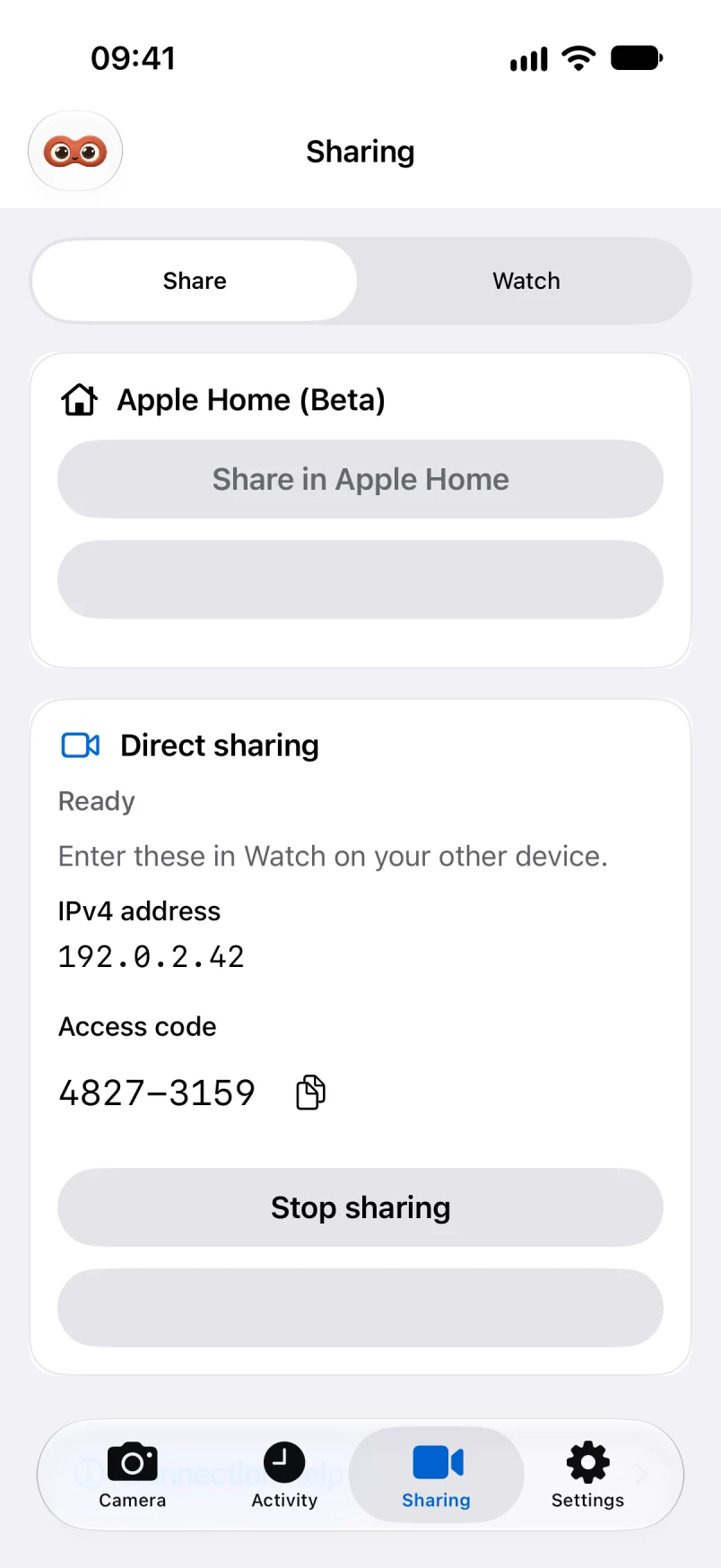
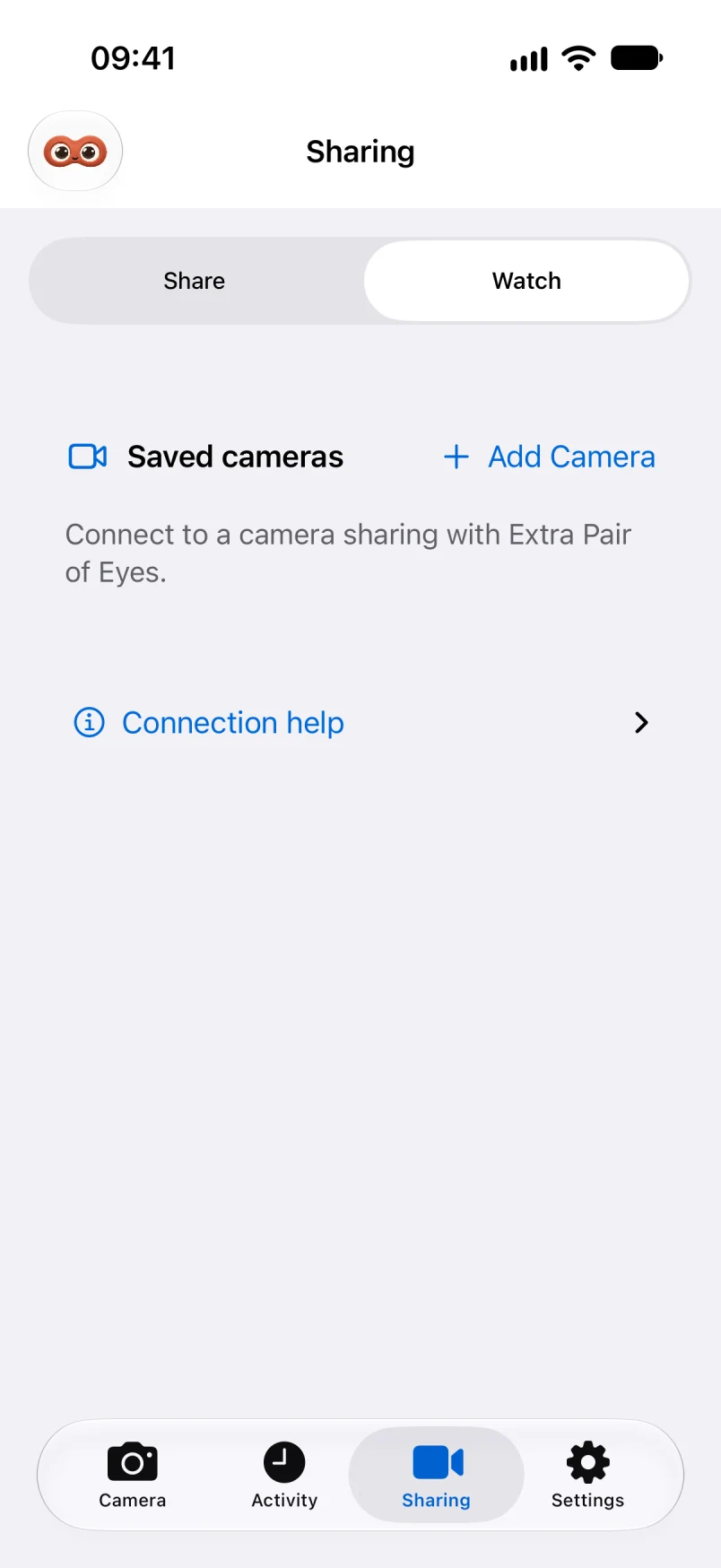
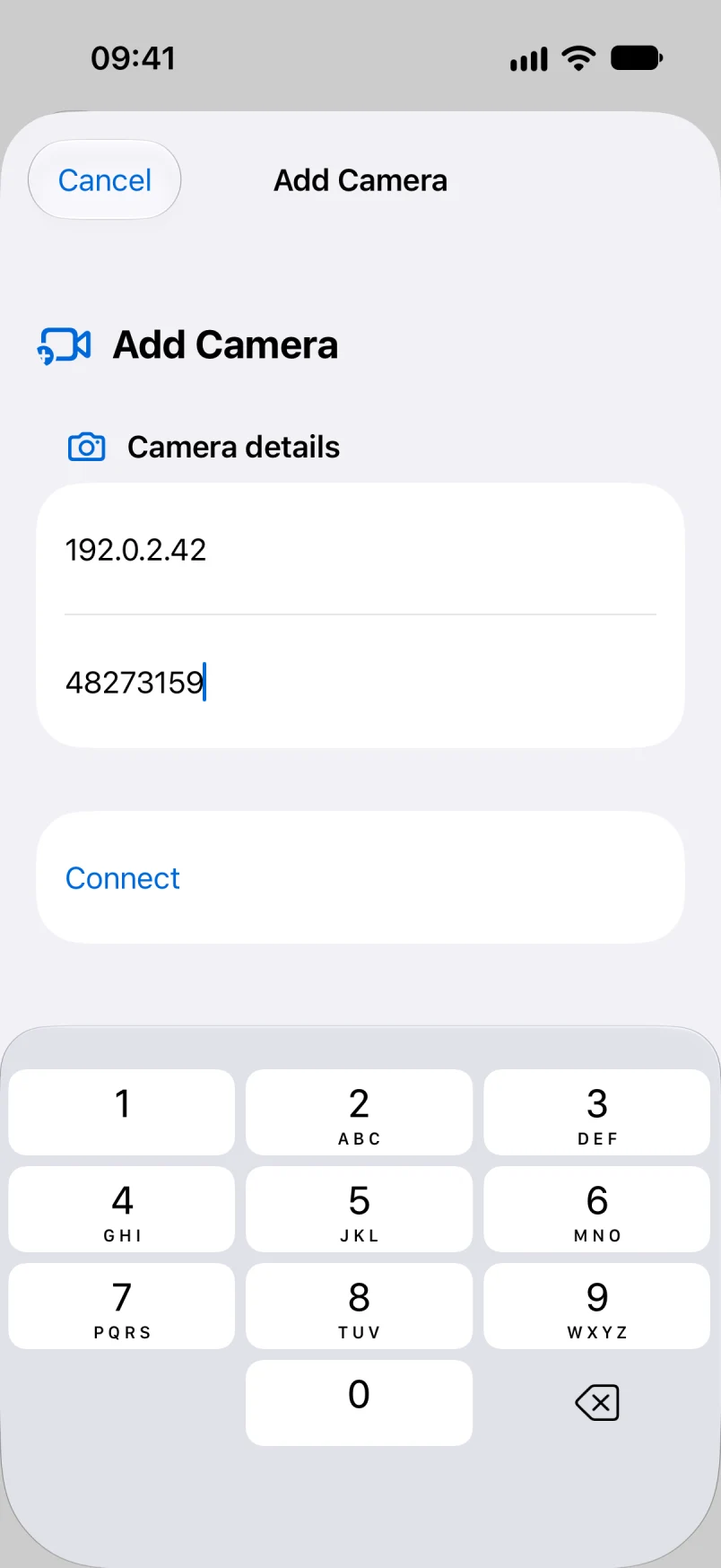
iPhone pairing walkthrough
In 25 seconds, see Share, Watch, and Connect in order, ending with a sample live feed.
Set up a private VPN.
Starting from scratch? This example uses Tailscale to put your home camera device and travel iPhone on the same private network. Watch Tailscale setup.
-
Install Tailscale on both devices
Install it on the Mac, iPhone, or iPad that runs the camera and on the iPhone you’ll take with you. Allow the Tailscale VPN configuration when prompted. Follow the official setup instructions for Mac or iPhone and iPad.
-
Join the same private network
Open Tailscale and create an account on the first device. Sign in with the same Tailscale account on the second. If you see a choice of networks, choose the same private network on both. Connect both devices and check that the home camera device appears in Tailscale.
-
Find the home camera’s VPN address
Open Machines in the Tailscale admin console. Find the device running the camera and copy its IPv4 address from Addresses. It typically looks like
100.x.x.x. Find a device’s Tailscale address. -
Connect in Extra Pair of Eyes
Leave the camera powered, awake, and monitoring. On your travel iPhone, open Sharing → Watch → Add Camera. Enter the camera’s Tailscale IPv4 address and the current access code from Share, then tap Connect. Keep the access code private.
Tailscale setup walkthrough
In 28 seconds, see how both devices join the same network, where to copy the home camera’s IPv4 address, and where it goes in Watch. The walkthrough uses illustrated screens and a sample address.
Once the feed opens, run the cellular test before you leave.
Test away from home.
Keep your home camera powered, awake, connected to the home network, and monitoring. Make the following changes on the iPhone you’ll take with you.
-
Switch to cellular data
On your travel iPhone, go to Settings → Wi‑Fi and turn Wi‑Fi off. Keep Cellular Data on and check that your carrier’s data indicator appears.
-
Connect your private VPN
Open the VPN app or profile you already use to reach your home network. Connect and confirm it reports Connected. The VPN must be able to reach the home camera. Set up a private VPN first if you’re starting from scratch.
-
Reopen Watch and confirm the feed
In Extra Pair of Eyes, open Sharing → Watch and reconnect. Use the camera address reachable through the VPN, which may differ from the Wi‑Fi address. Confirm the live image opens over cellular data.
Watch the off‑Wi‑Fi test
The video illustrates the iPhone Settings and VPN steps, then shows Watch on an iPhone simulator with a sample camera feed.
If the feed fails to open, check Live View again on home Wi‑Fi, then confirm your VPN can reach the address you entered. Get help with Live View.